
Multica and calling an agent
Connect Multica
Section titled “Connect Multica”Once connected, agents on Multica call you when they finish, and your reply after hang-up goes back to the issue as a comment.
- In the app, open Settings → Multica, enter your own Multica API token, and verify it.
- Tick the workspaces to watch. You can pick several.
- Save.
To change workspaces later, use Change workspaces. There is no need to enter the token again.
With several workspaces, calls show the workspace before the project name.
Call an agent: one sentence, one task
Section titled “Call an agent: one sentence, one task”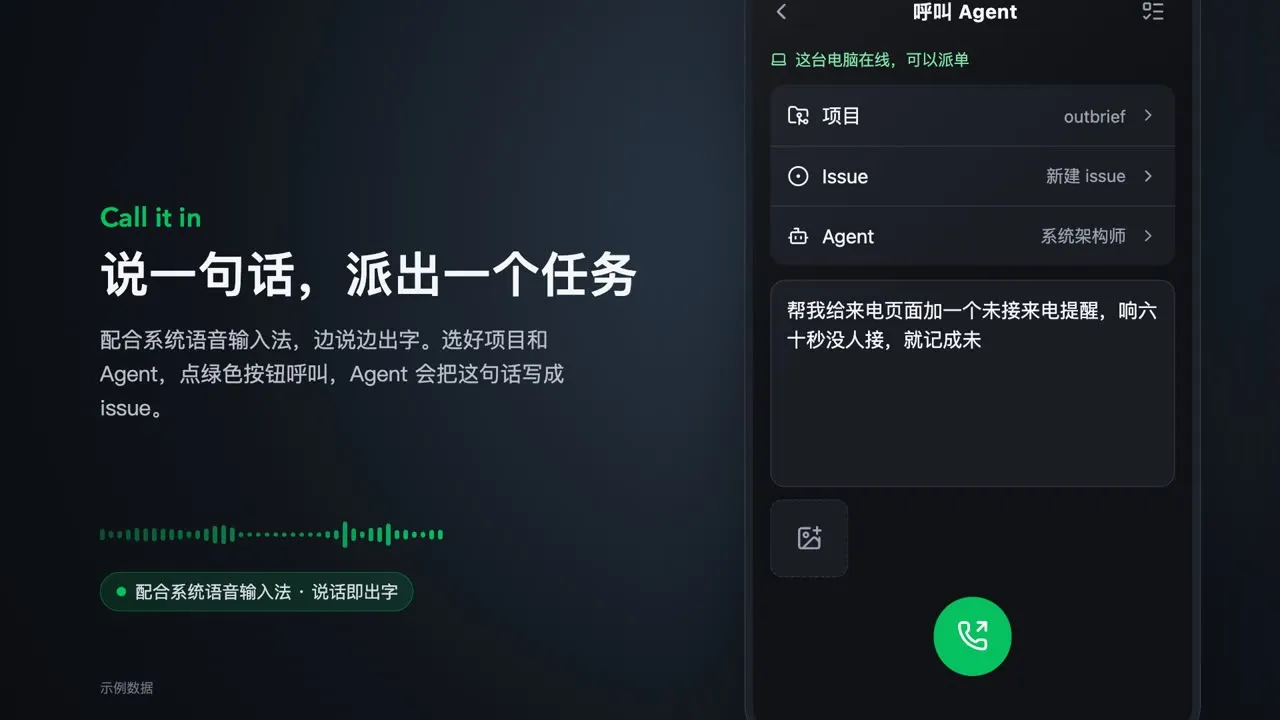
The green phone button in the middle of the idle screen is Call an agent:
- The project and agent default to your last dispatch. Open the bottom panel to change them.
- Describe the task in the text box. Phone voice input works well; mention priority and due date if you like.
- Attach images if needed. On desktop, paste a screenshot or drop it into the text box.
- Tap the call button.
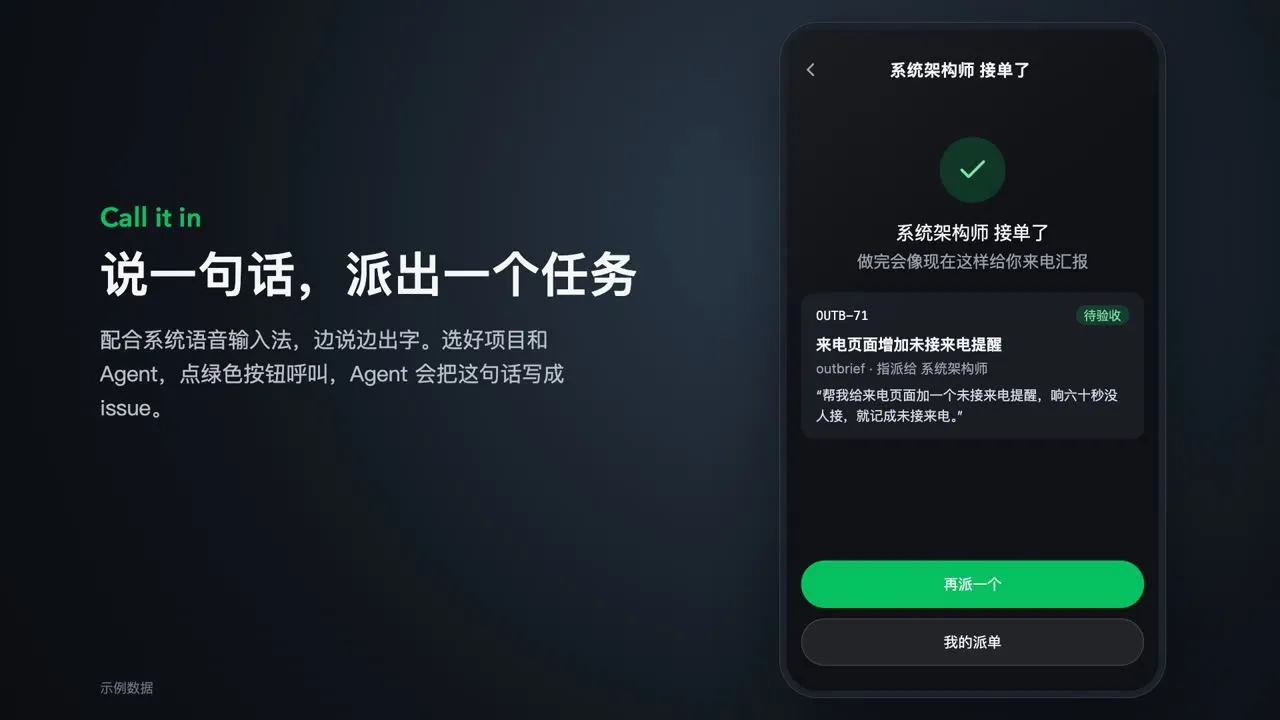
The chosen agent writes the issue from your words and extracts the title, priority, and due date. The calling screen waits until the issue exists, then shows its number and title. Don’t want to wait? Go to My dispatches.
Follow up on an existing issue
Section titled “Follow up on an existing issue”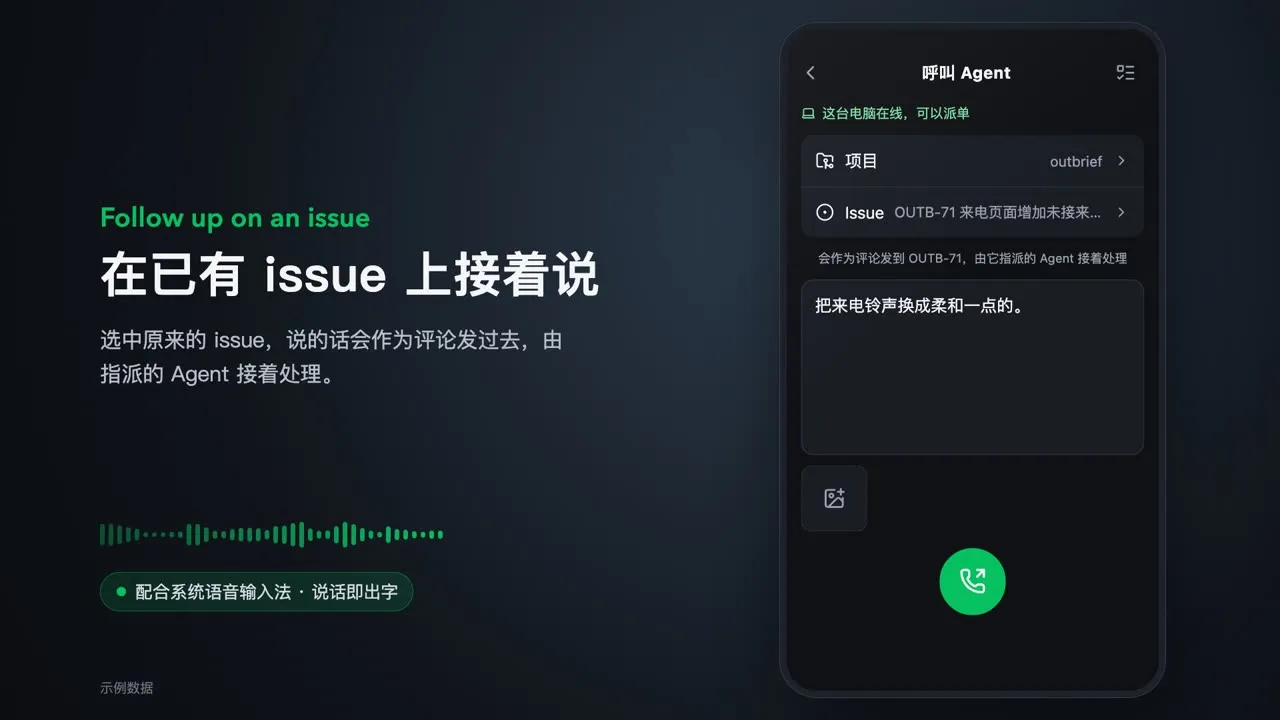
Pick an existing issue on the dispatch screen, and your words are posted to it as a comment. Multica hands it to the issue’s assigned agent as usual. Filter issues by title, number (61, OUTB-61), or status.
My dispatches
Section titled “My dispatches”My dispatches lists everything sent from this computer and the current status of each issue. Every device in the account can see it.
Button grayed out?
Section titled “Button grayed out?”The call button is disabled, with the reason on screen, when:
- The computer is offline, or its daemon is not running
- Multica is not set up on the computer yet
- The chosen agent’s computer is offline in Multica
It turns back on by itself once that is fixed.