Take a call
Before it rings
Section titled “Before it rings”When a report arrives, the app first makes the speech for the whole brief on this device, and only then rings. You never wait after picking up. Meanwhile the idle screen says it is preparing N reports.
If speech fails, the call does not ring. The idle screen shows why, with Retry and Ignore.
Every device rings
Section titled “Every device rings”All devices in the account ring together, like multi-device calls in FaceTime or WeChat:
- Pick up, decline, or acknowledge on one, and the others stop at once.
- The history notes where it was taken, for example “Answered on iPhone”.
- If two devices pick up at almost the same time, the one that reaches the server first wins.
During a call
Section titled “During a call”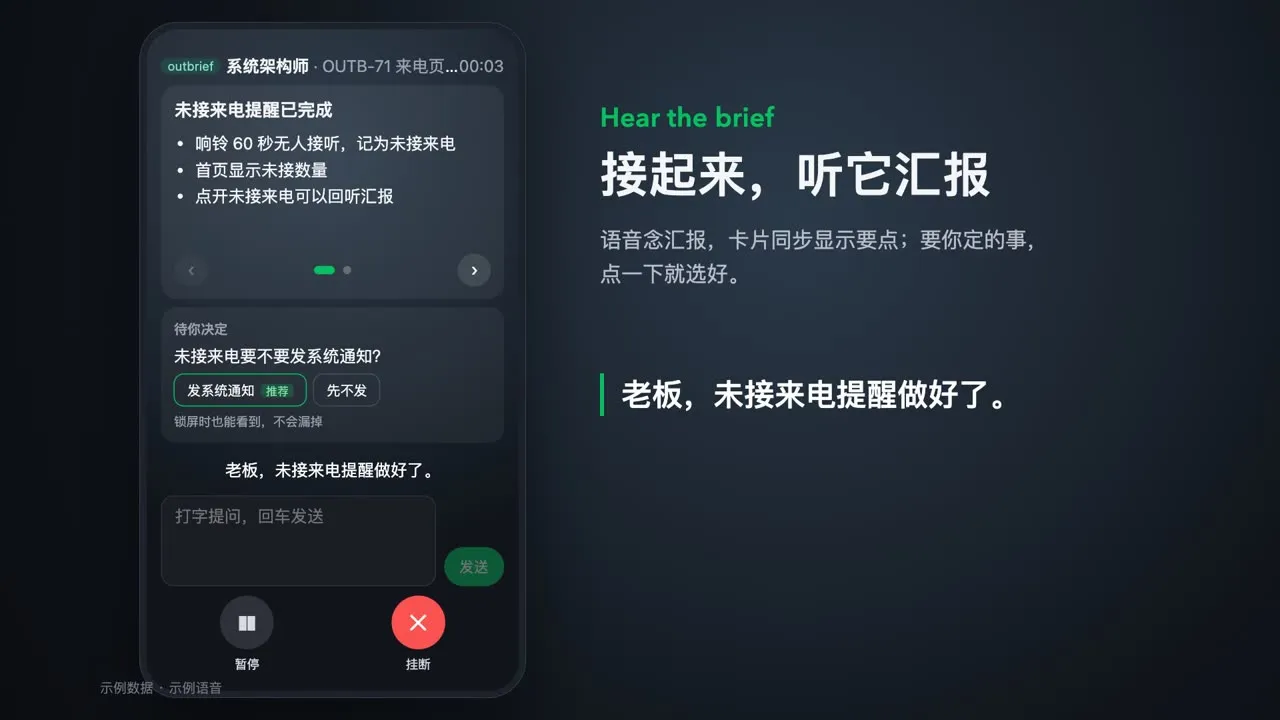
- Cut in with a question: just type. The LLM answers from the agent’s full report and the brief, and speaks as it answers.
- Carry on: type “continue” to pick up where it stopped.
- Turn the cards: swipe or use ‹ › and the dots; the speech jumps to that part.
- Instructions for the agent: the app answers that it will pass them on after you hang up. It never pretends it already acted.
- Errors: the bubble says why (for example, no LLM configured, or a 401 from the endpoint), with Retry.
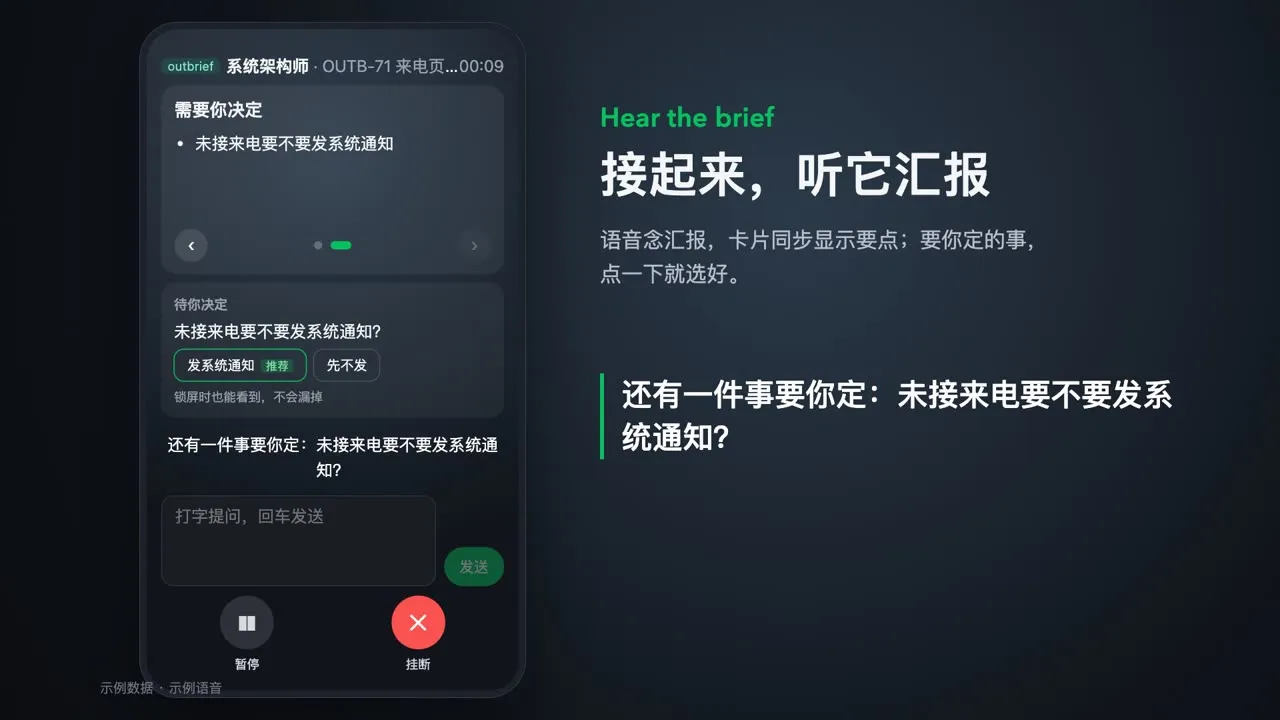
The call stays open after the brief ends. Keep asking, or hang up and reply. After Done, the next call comes in.
Hang up to reply
Section titled “Hang up to reply”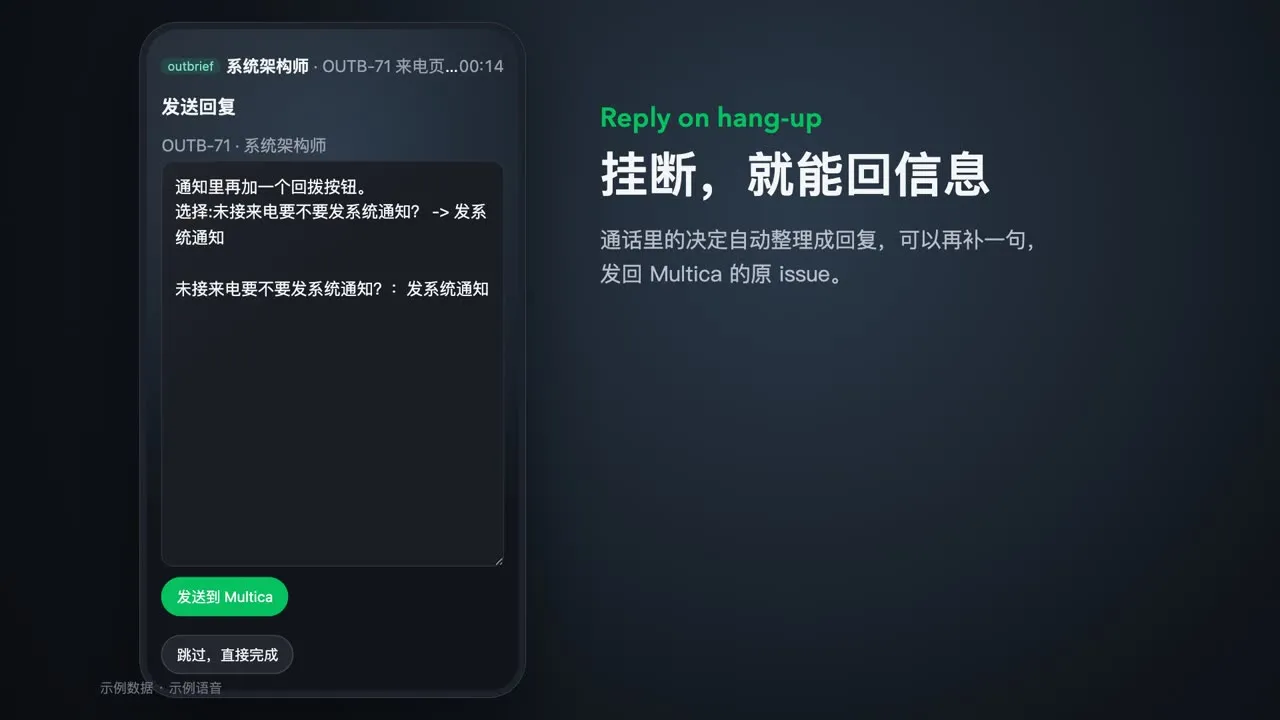
After hang-up, the app joins what you said and decided into one reply, without calling the LLM. Edit it, then send:
- Claude Code / Codex: the daemon resumes the agent in the same session (
--resume). - Multica: the daemon posts the reply to the issue as a comment, as you.
If the computer is off or the daemon is not running, the reply waits in a queue and is delivered within 24 hours once the daemon is back.
Missed calls and the Calls page
Section titled “Missed calls and the Calls page”The call icon at the top right of the idle screen shows the number of missed calls. It opens the Calls page:
- Missed calls on top: reports waiting to be heard. Tap Answer on any of them, in any order. Acknowledge all the ones you will not take.
- Call history below: stored only on this device, up to 100 entries.
- Tabs by project: one tab per Multica project, plus All. Lists are sorted by issue priority, then by update time.
These calls do not ring and go straight to missed:
- Calls that arrive outside your ringing hours
- Calls this device learns about more than 2 minutes late, for example while the app was closed or offline
Modes: when to ring
Section titled “Modes: when to ring”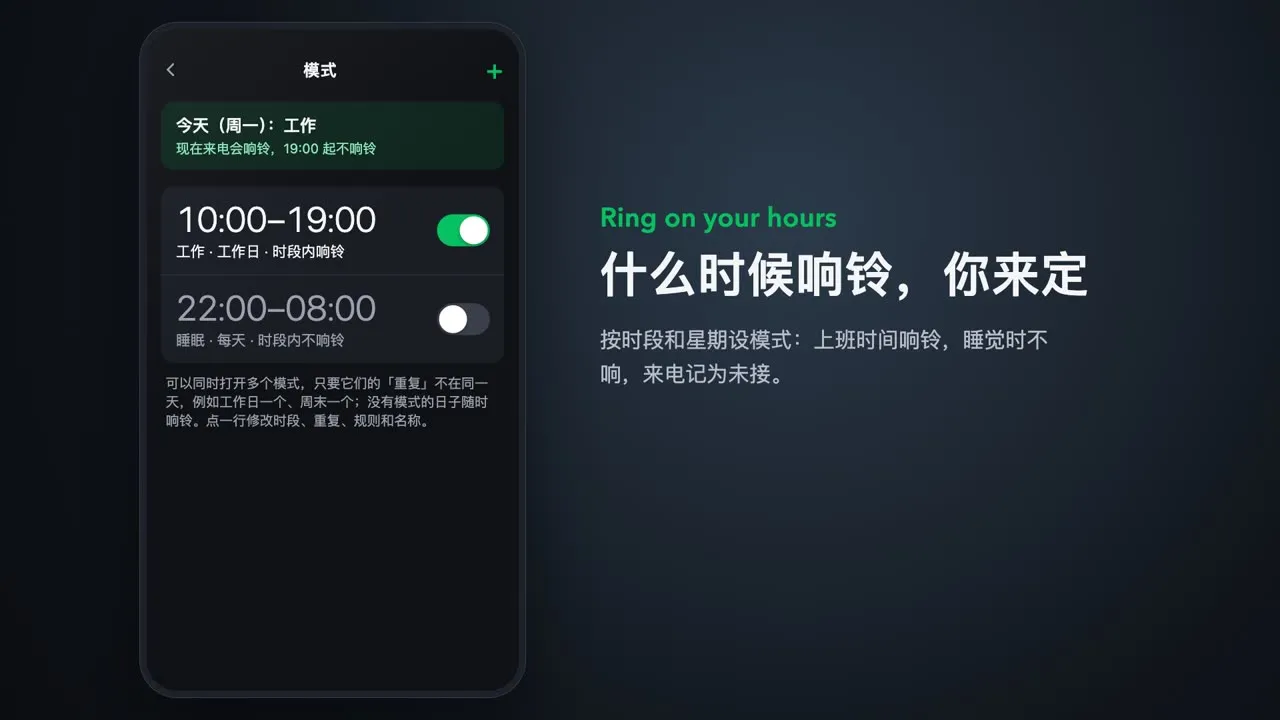
Settings → Modes works like the alarm clock on a phone:
- Tap + at the top right.
- Pick the start and end time on the wheels. Add several ranges; a range can cross midnight (22:00–08:00).
- Pick the days, then the rule: ring during these hours, or stay quiet during these hours.
- Name it and save.
- A new install comes with Work (weekdays 10:00–19:00, ring) and Sleep (every day 22:00–08:00, quiet). Both are off, so calls ring any time.
- Modes on different days can be on together, for example one for weekdays and one for weekends.
- The pill at the top left of the idle screen shows today’s mode. When calls are muted, the bell is crossed out and the pill turns amber. Tap it to switch for today.
- Entering quiet hours never cuts a call. Calls queued behind it become missed.
Other settings
Section titled “Other settings”| Setting | What it does |
|---|---|
| Settings → Ringtones | The ringtone (Classic by default) and the waiting tone while you call an agent (ringback by default). Add your own audio files, up to 10 MB each |
| Settings → Your name | What agents call you in briefs and answers |
| Settings → Display language | Follow the system, Chinese, or English. The brief and voice language are set in Settings → Voice → Report language |
Closing the desktop window hides it to the tray, and it pops up when a call comes in. Only one desktop app runs at a time; opening it again brings the running window to the front.